Claude × Playwright MCP 가이드 2026: AI가 진짜 브라우저를 직접 조작하기
Playwright MCP를 Claude에 연결하면 AI가 실제 브라우저를 클릭·입력·조작한다. 스크린샷이 아니라 접근성 트리 스냅샷 방식이라 정확하고 토큰 효율이 높다. claude mcp add 한 줄 설치부터 데이터 추출·E2E 테스트, 그리고 한계까지 직접 확인해 정리했다.
Higgsfield로 영상, Notion으로 정리를 다뤘으니 오늘은 자동화다. Claude에 Playwright(플레이라이트) MCP를 붙이면, “이 사이트 열어 로그인하고 이 표 뽑아줘” 하면 AI가 실제 크롬을 띄워 직접 클릭하고 입력한다. 마이크로소프트 계열 공식 서버고 설치는 명령어 한 줄이다. 흥미로운 건 이게 스크린샷을 보는 방식이 아니라는 점인데, 아래에서 푼다.
뭐가 가능해지나?
Claude가 진짜 브라우저(Chromium·Firefox·WebKit)를 조작한다.
- 페이지 열고 클릭·입력·폼 작성·제출
- 표·목록 데이터 추출(스크래핑)
- E2E 테스트 자동화(“로그인 → 장바구니 → 결제까지 되는지 확인해줘”)
- 반복 웹 작업을 말로 지시
비전 모델(이미지 인식) 없이도 된다. 이게 핵심이다.
왜 이게 되나 — 스크린샷을 안 본다?
보통 “AI가 화면 보고 클릭한다”고 하면 스크린샷을 떠올린다. Playwright MCP는 접근성 트리(accessibility tree) 스냅샷 방식이다. 픽셀이 아니라 페이지 구조를 텍스트로 읽고, 각 요소에 고유 ref(참조)를 붙여 정확히 집는다.
- 결정적(deterministic) 조작 — “세 번째 버튼” 같은 애매함 없이 ref로 콕 집는다
- 토큰 효율 — 스냅샷 하나가 약 200~400 토큰(스크린샷·DOM은 수천 토큰)
이 구조가 왜 강한지는 MCP가 표준이 된 배경과 함께 보면 이해가 빠르다.
언제 쓰나
| 잘 맞는 상황 | 덜 맞는 상황 |
|---|---|
| 반복 폼 작성·로그인·데이터 추출 | 캔버스·특수 위젯 등 접근성 트리에 안 잡히는 UI |
| E2E·회귀 테스트 자동화 | 픽셀 단위 시각 검증(스크린샷 보조) |
| 웹 워크플로를 대화로 처리 | 완전 서버리스/클라우드 전용 환경 |
설치 방법
Claude Code라면 정말 한 줄이다.
claude mcp add playwright npx @playwright/mcp@latest사용자 스코프에 등록되고, 로컬 stdio 서브프로세스로 실행되며, 기본은 headed 크롬이다. Claude Desktop·Cursor·VS Code·Windsurf 등 MCP 클라이언트에서도 쓸 수 있다.
사용 방법
연결됐다면 말로 시키면 된다.
“이 사이트 열어 로그인 폼 채우고 제출해줘” “이 페이지에서 상품명·가격을 표로 정리해줘” “회원가입 → 결제 흐름이 에러 없이 되는지 테스트해줘”
Claude가 browser_snapshot으로 페이지 구조를 받고, ref로 요소를 집어 클릭·입력한다. 이런 자동화를 업무 전반으로 넓히는 그림은 AI 도구를 엮는 실전 조합과 이어진다.
특이점·한계 (직접 확인)
주력 도구는 browser_snapshot(접근성 트리)이고, 시각 확인이 필요할 때만 browser_screenshot(PNG)을 쓴다. 로컬 실행 방식이라 브라우저가 설치돼 있어야 하고 내 PC에서 돈다(클라우드가 아니다). 접근성 트리에 잘 안 잡히는 요소(캔버스·특수 위젯)는 조작이 까다로울 수 있으니 감안하자.
노하우·꿀팁
기본은 스냅샷으로 두고, 스크린샷은 “눈으로 확인”이 필요할 때만 최소로 쓰면 토큰이 절약된다. 요소가 헷갈리면 ref를 명시해 지시하면 오작동이 준다. 반복 테스트는 흐름을 단계별로 나눠 시키는 편이 안정적이다.
자동화가 멈추는 자리는 대체로 정해져 있다
브라우저를 시키는 작업은 처음 한 번은 잘 되는데 며칠 지나면 같은 자리에서 멈춘다. 반복해서 만난 원인은 넷이다.
로그인 세션이 풀린다. 가장 흔하다. 쿠키 만료나 재인증 요구가 오면 그 뒤 단계가 전부 실패한다. 세션을 유지하는 방식으로 프로필을 저장해 두거나, 최소한 로그인 여부를 먼저 확인하고 아니면 멈추도록 만들어야 한다. 로그인이 안 된 상태로 뒤 단계를 계속 시도하면 엉뚱한 화면에서 아무 버튼이나 누르는 사고가 난다.
화면이 바뀐다. 버튼 위치나 문구가 바뀌면 찾지 못한다. 위치 좌표보다 텍스트나 역할로 요소를 지정하는 편이 오래 간다.
로딩을 기다리지 않는다. 화면은 떴는데 데이터가 아직 안 채워진 상태에서 다음 동작을 하면 빈 값이 들어간다. 고정 시간 대기보다 특정 요소가 나타날 때까지 기다리게 하는 쪽이 안정적이다.
대화 상자가 뜬다. 확인 창이나 알림 팝업이 뜨면 그 뒤 동작이 전부 막힌다. 삭제·전송처럼 확인 창을 부르는 버튼은 아예 건드리지 않도록 범위를 정해 두는 게 낫다.
넘기면 안 되는 작업
브라우저를 대신 조작하게 하는 이상, 되돌릴 수 없는 동작은 사람이 직접 하는 게 맞다. 결제, 전송, 삭제, 계정 설정 변경이 여기 해당한다. 자동화는 그 직전까지, 즉 화면을 채워 놓고 확인만 기다리는 상태까지만 하게 만드는 구조가 사고를 크게 줄인다.
로그인 정보도 마찬가지다. 아이디와 비밀번호를 스크립트나 대화에 적어 두는 순간, 그 기록이 남는 모든 곳이 유출 지점이 된다. 사람이 한 번 로그인해 둔 세션을 재사용하는 방식이 훨씬 안전하다.
어디에 쓰면 실제로 시간이 줄어드나
효과가 확실했던 건 같은 화면을 반복해서 확인하는 일이었다. 여러 페이지가 제대로 뜨는지 훑기, 폼이 정상 동작하는지 점검하기, 바뀐 화면을 이전과 비교하기 같은 것들. 사람이 하면 지루해서 대충 보게 되는 작업을 기계가 매번 같은 기준으로 본다는 게 핵심 이득이다.
반대로 한 번만 할 작업을 자동화하는 건 대체로 손해다. 스크립트를 다듬는 시간이 직접 하는 시간보다 길다. 세 번 이상 반복할 일인지부터 따져 보고 시작하는 게 맞다.
자주 묻는 질문
Q. AI가 스크린샷을 보고 클릭하나? 아니다. 기본은 접근성 트리 스냅샷(구조화된 텍스트)을 읽어 요소의 ref로 조작한다. 시각 검증이 필요할 때만 스크린샷을 별도로 쓴다.
Q. 설치가 어렵나?
Claude Code면 claude mcp add playwright npx @playwright/mcp@latest 한 줄이다. Claude Desktop·Cursor 등 다른 MCP 클라이언트도 지원한다.
Q. 어떤 브라우저를 쓰나? Chromium·Firefox·WebKit을 지원하며 기본은 headed Chromium이다. 로컬에서 실제 브라우저로 실행된다.
Q. 테스트 자동화에 쓸 수 있나? 쓸 수 있다. 로그인→결제 같은 E2E 흐름을 말로 지시해 검증할 수 있고, 결정적 ref 조작이라 재현성이 좋다.
원문 확인: microsoft/playwright-mcp 공식 저장소 — 스크린샷 대신 구조화된 접근성 스냅샷으로 페이지를 다룬다는 설명, --headless 옵션(기본은 headed) 등 설정 항목. 저장소 내용 재확인 2026년 9월 19일. 설치 명령·옵션은 버전에 따라 바뀌므로 설치 전 저장소 README를 기준으로 삼으세요.
AI 도구 사용법 관련 글
 AI툴
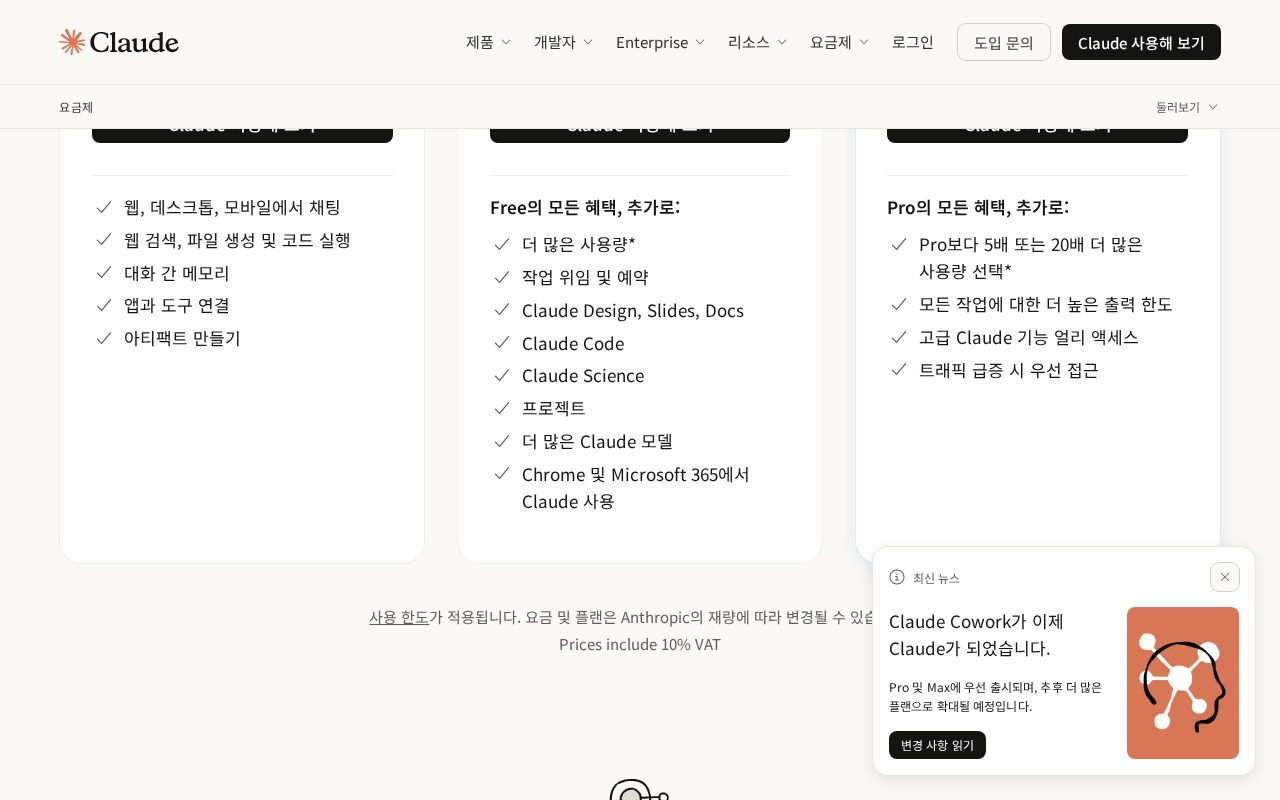
AI툴Claude Docs·Slides 사용법·요금 2026: Pro $22(연 $18)·Max $110부터, Cowork 통합 후 문서·슬라이드 만들고 PPT로 받는 법
Claude에 문서·슬라이드 기능이 생겼다 — 요금 페이지에 새로 생긴 한 줄과, 직접 만든 3장짜리 덱으로 확인한 것
 AI툴
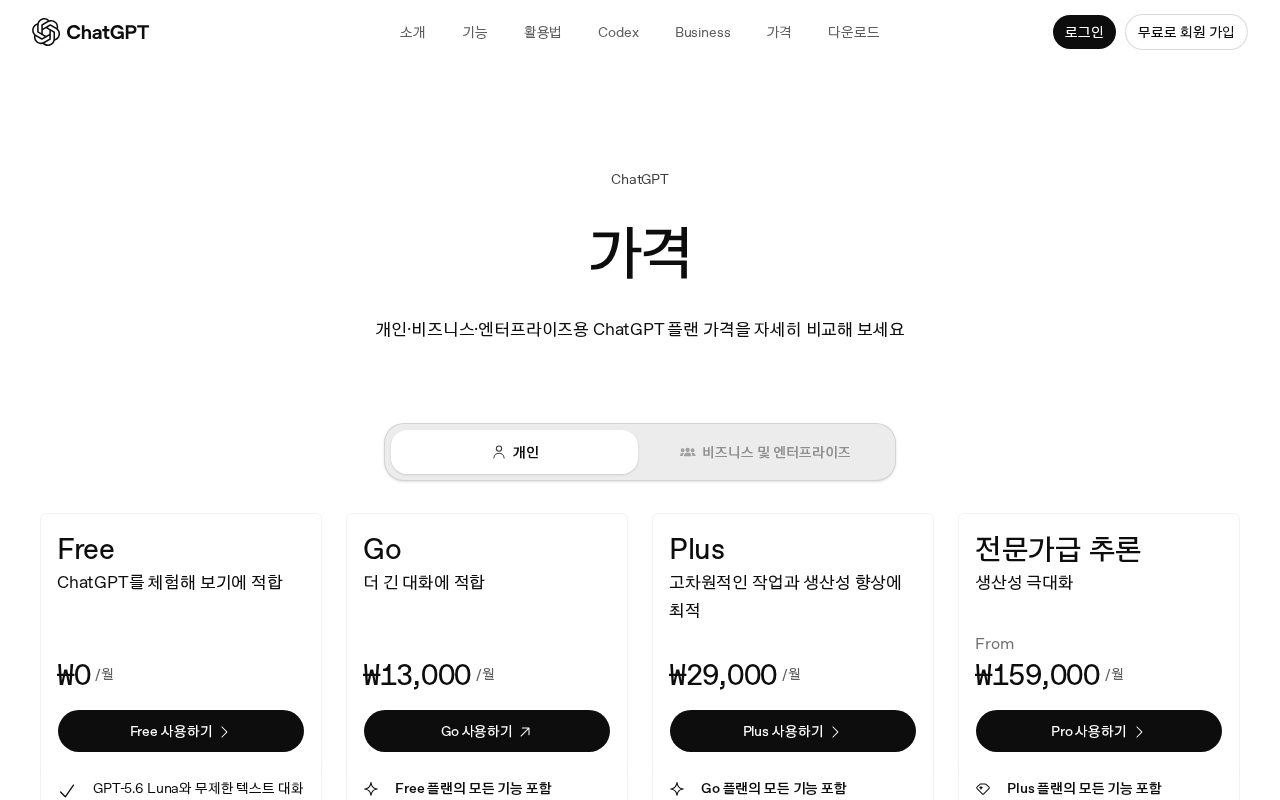
AI툴GPT-6 Astra 요금·플랜 정리 2026: 한국 페이지 Plus ₩29,000·Pro ₩159,000부터, API $10/$50, Plus는 Work·Codex에서만
29,000원 내면 GPT-6 Astra가 열리나? 표에는 '제한적'이라고 적혀 있다 — 어디서 제한되는지 도움말까지 읽었다
 AI툴
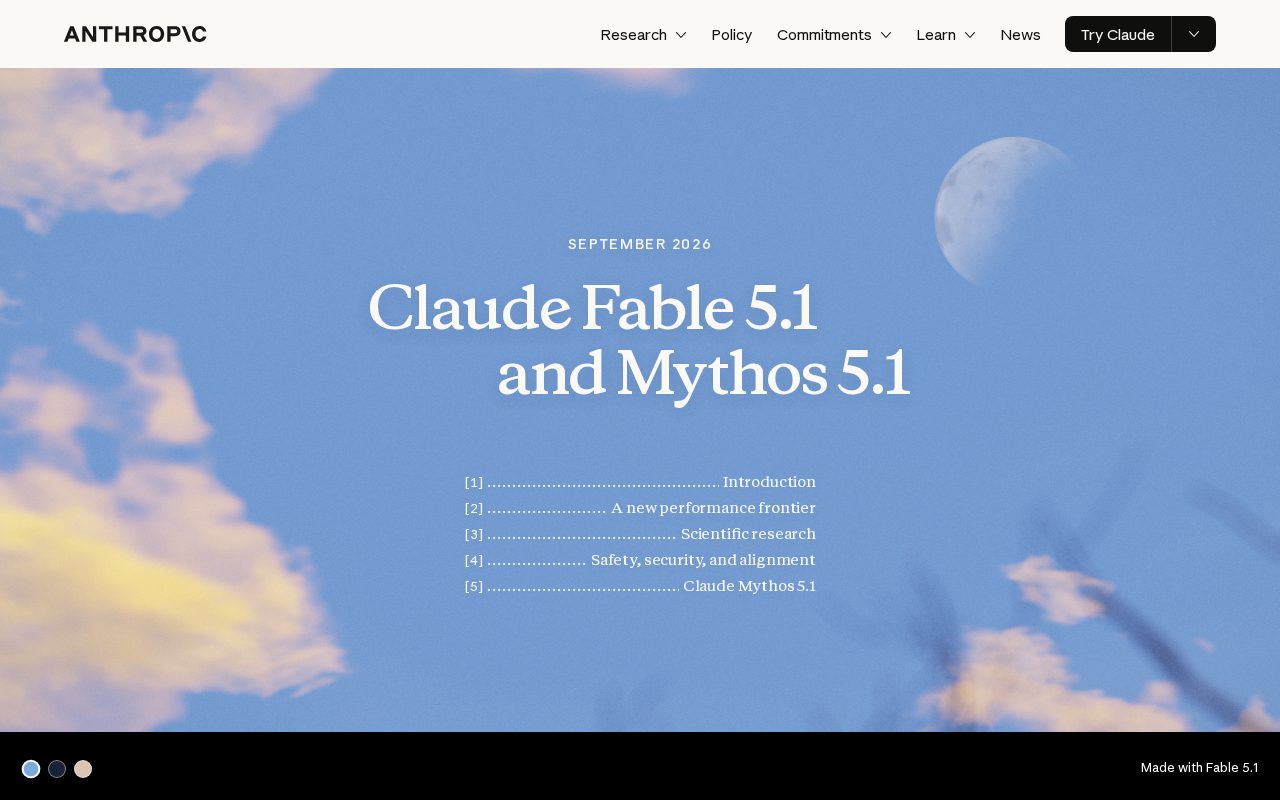
AI툴Claude Fable 5.1 나왔다: 한국 결제 페이지 Pro $22·Max $110부터, API $10/$50 — 직접 시켜본 결과까지
미국 페이지는 $20인데 한국에서 열면 $22 — 부가세 한 줄 차이를 결제 전에 알고 가자